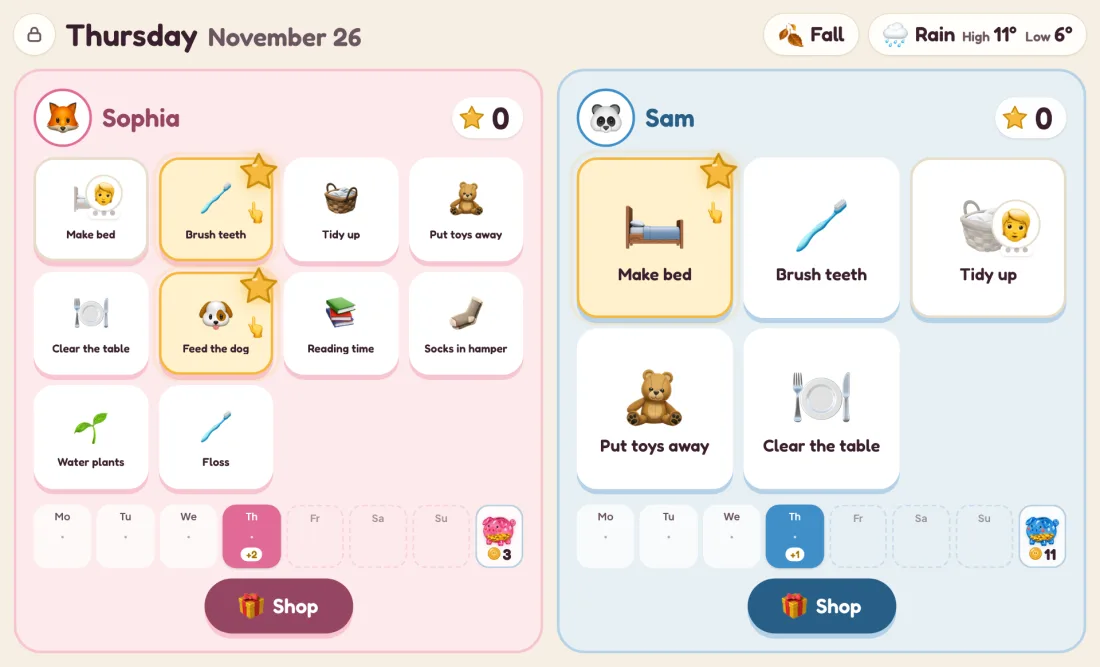
1. Open the kids' board on the tablet
On your phone, open the setup guide on your dashboard and tap Put the board on the kitchen tablet. Then pick the easiest way:
- Email me a link. Open that email on the tablet and tap Open the kids' board. The link works once, for 1 hour. It goes only to a confirmed email, so confirm yours first.
- Show a code. On the tablet, go to chorepig.app/pair and type the code. Or scan the QR code with the tablet's camera. A code works once, for 15 minutes.
- Holding the tablet already? Sign in on it, tap Make this device the kids' board (in the guide, or in Settings → Kid devices), and confirm.
The setup guide closes once you finish it. To add a tablet later, or to replace one, use Settings → Kid devices: it has the same three ways.
The tablet now shows the kids' board and stays that way for months. Your parent login does not stay on it: to make a change on the tablet, tap the lock and enter your PIN, or your email and password.
To only look at the board from your phone, open Menu at the top of your dashboard and tap Preview kids' board. On a wide screen, the button is in the header. Taps there change real data. Set up your phone by mistake? On the phone, open the board, tap the lock, then go to Settings → Kid devices and tap Stop using this device as the kids' board.
2. Put it on the home screen
This opens the board full screen, like an app, with no browser bar.
- Samsung Internet (the purple icon on Galaxy tablets): tap the menu (three lines) at the bottom, then Add page to, then Home screen.
- Chrome on Android: tap the menu (three dots), then Add to Home screen or Install app.
- iPad (Safari): tap the Share button, then Add to Home Screen.
Open ChorePig from the new icon from now on.
3. Keep it on and out of the way
- Give it a spot at kid height, near a plug. A simple stand helps.
- In the tablet's display settings, make the screen stay on longer, or always on while charging.
- The board updates itself. You never need to refresh it.
4. Your phone
Open chorepig.app on your phone, sign in, and add it to the home screen the same way. Then turn on Settings → Phone alerts to get a buzz when a chore needs a yes. On iPhone, alerts only work from the home-screen icon.