What an alert looks like
 Sophia finished a chorenowMake bed. Tap to check it.
Tap the alert and ChorePig opens on your To check list. Alerts come at most once a minute, so a busy morning does not buzz nonstop.
On iPhone
iPhone only allows alerts for a web app opened from the home screen, so do this first.
- Open Safari (not another browser) and go to chorepig.app. Sign in.
- Tap the Share button at the bottom of the screen.
- Scroll down and tap Add to Home Screen, then Add.
- Close Safari. Open ChorePig from the new pig icon on your home screen, and sign in again.
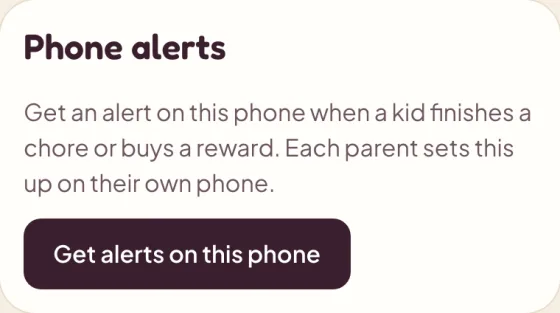
- Go to Settings (the gear) → Phone alerts and tap Get alerts on this phone.
- Tap Allow when the iPhone asks.
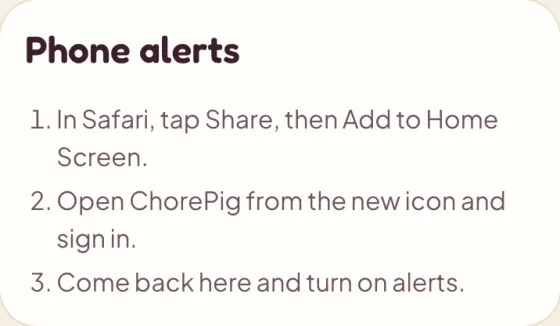
Until ChorePig is on your home screen, the Phone alerts section shows you these steps:
Needs iOS 16.4 or later. Check in Settings → General → About.
On Android
- Open Chrome or Samsung Internet and go to chorepig.app. Sign in.
- Chrome: tap the menu (three dots), then Add to Home screen or Install app. Samsung Internet: tap the menu (three lines), then Add page to → Home screen.
- Open ChorePig from the new icon.
- Go to Settings → Phone alerts and tap Get alerts on this phone.
- Tap Allow.
Both parents
Each parent turns on alerts on their own phone, signed in as themselves. Invite a second parent from Settings → Parents.
No alerts?
- "Alerts are blocked": you tapped Don't Allow before. Allow notifications for ChorePig in the phone's settings (iPhone: Settings → Notifications → ChorePig), then come back.
- iPhone, nothing happens: make sure you opened ChorePig from the home-screen icon, not from Safari.
- Focus or Do Not Disturb hides alerts. Check that it is off, or let ChorePig through.
- Use Send a test alert in Phone alerts to check it works.